# 利用 Raycast+DeepL 達成快速翻譯的技巧
不知道大家平時如何使用翻譯的,是每次要翻譯都打開 Google 翻譯之類的工具或是現在使用 ChatGPT 之類的 AI 來翻譯呢?
這次想分享的是比上面這二種方法都還快速,且品質很好的翻譯方法。
使用工具:[Raycast](https://www.raycast.com/) 的 [Deepcast](https://www.raycast.com/mooxl/deepcast) (Mac 用戶)
### 1.安裝 Raycast 1.安裝Raycast
[Raycast - Your shortcut to everything\
Raycast - 一切的捷徑](https://www.raycast.com/)
### 2.安裝 Raycast 的擴充套件 Deepcast
[Raycast Store: Deepcast Raycast 商店:Deepcast](https://www.raycast.com/mooxl/deepcast)
### 3.註冊 DeepL 帳號
選擇免費註冊 (DeepL 是網路評價非常好的翻譯工具)
[DeepL Pro | Translate Text, Word Docs & Other Docs SecurelyFast, accurate and secure translations. DeepL Pro Translate for individuals and teams.Contact Sales](https://www.deepl.com/pro#developer)
### 4.登入帳號
登入後點選這個連結
[DeepL accounttranslatorDescription\_1Contact Sales](https://www.deepl.com/zh/account/summary)
### 5.創建 API 密鑰
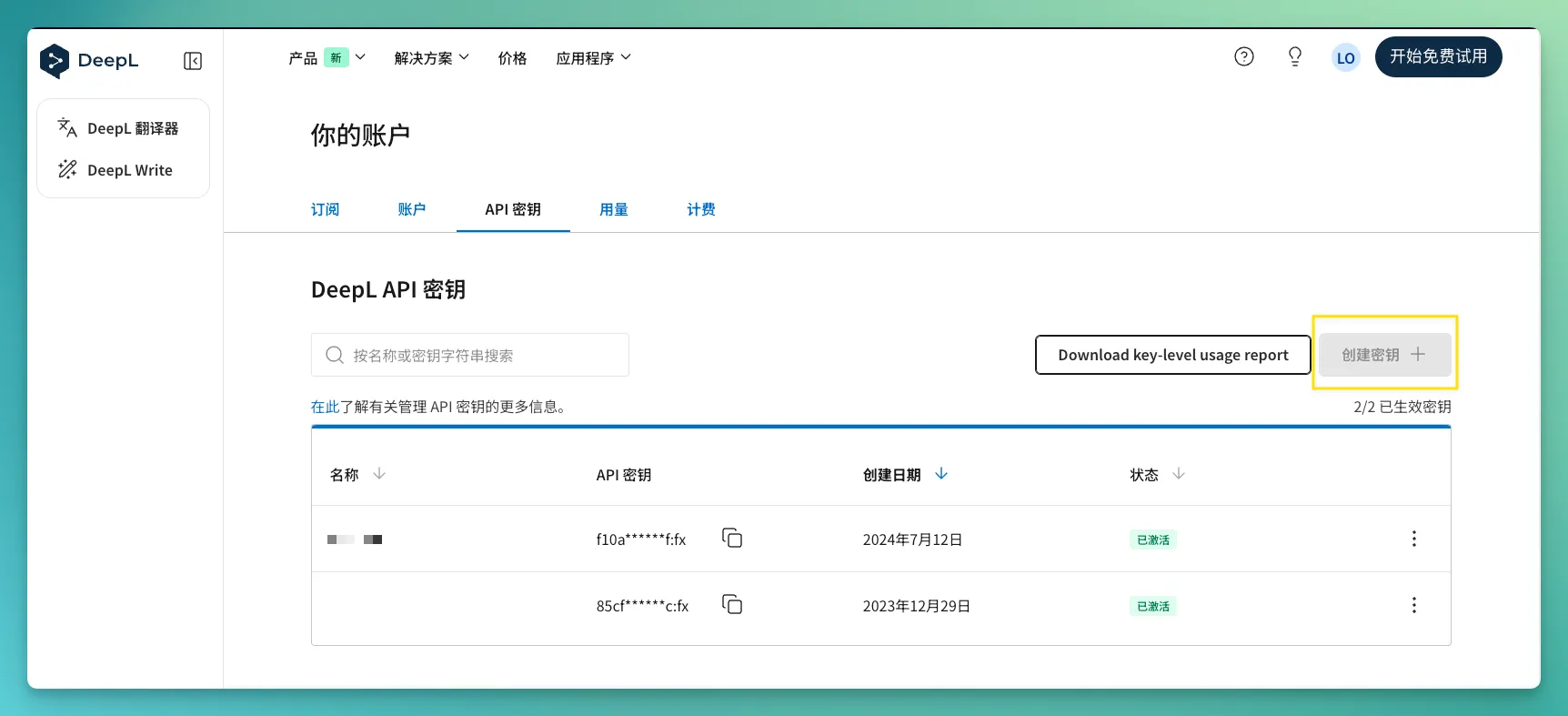
在帳號頁面,可以找到「API 密鑰」,點開後可以在右邊找到「創建密鑰」,點選後就能創建密鑰了,記得這密鑰不要亂分享,因為用量都是從你帳號扣,免費每個月有 50 萬字元的用量,一般個人使用非常足夠
## 6.設定金鑰與快捷鍵
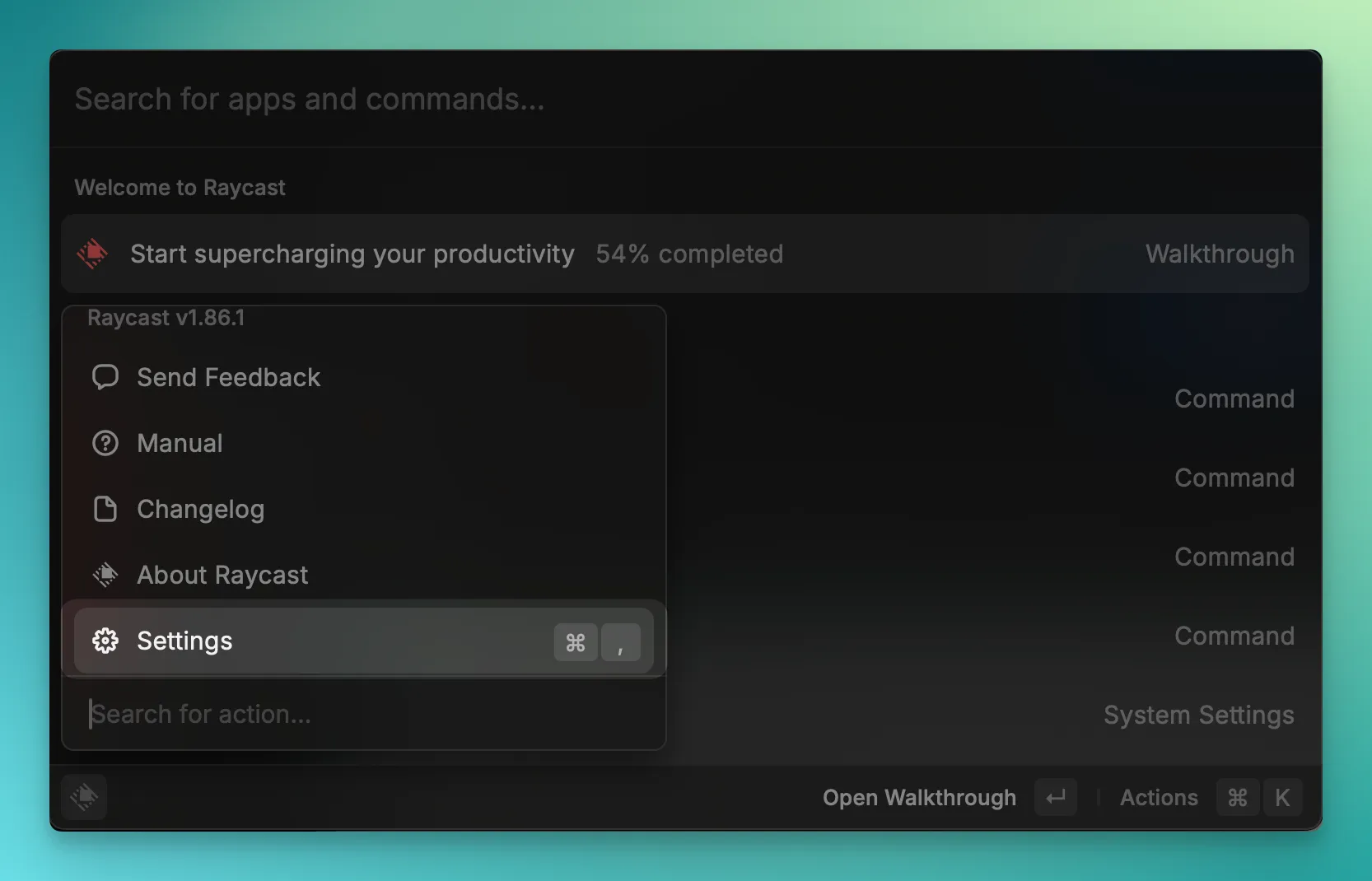
接著打開 Raycast 的 Setting
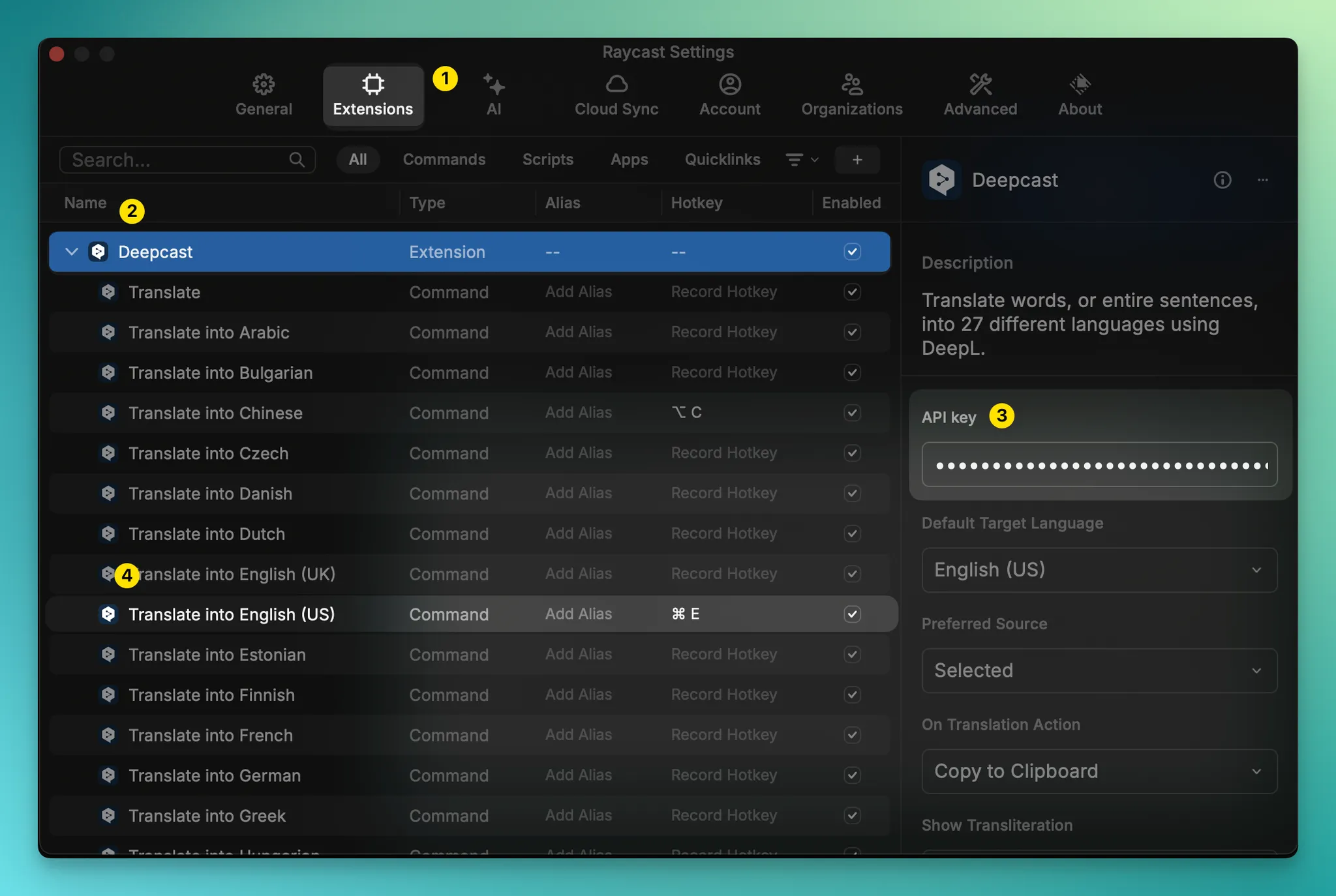
接著選擇「Extensions」,找到「Deepcsat」,點擊後右邊有一個「API Key」欄位,請把你帳號建立好的 API 金鑰貼在這欄位中。
接著我們選擇要翻譯的語言,我這邊使選擇要把選取文字翻成「English(US)」,快捷鍵為了好記憶我設定「Cmd+E」
\*這邊的快捷鍵是我自己設定的,並非是預設的,這點要特別注意!另外也要注意不要跟其它工具設定的快捷一樣,可能會有衝突。
當你設定好後,就完成了,接下來不管你在瀏覽器、軟體中,都可以直接使用這個快捷鍵翻譯,想向一下,你在設計軟體中選中「中文」,然後按下「Cmd+E」,就會翻譯好並複製到「剪貼簿」,接著你就可以在任意位置貼上。
成功後應該在畫面跳出下圖這段綠色文字
**我自己還有二個很常應用的方式:**
**1.圖庫搜尋:**在圖庫輸入框直接輸入中文,然後「Cmd+A」+「Cmd+E」,就完成翻譯能直接搜尋了
**2.AI 圖片生成:**圖片生成多數都要輸入提示詞,而且以「英文」為主,這邊我就會在提示詞輸入欄直接打中文,然後也是「Cmd+A」+「Cmd+E」,接著就能直接生成了
這方法對於我這種英文苦手有非常大的幫助。
---
# Agent Instructions: Querying This Documentation
If you need additional information that is not directly available in this page, you can query the documentation dynamically by asking a question.
Perform an HTTP GET request on the current page URL with the `ask` query parameter:
```
GET https://creatorhome.gitbook.io/ai-design/fei-shi-jue-xiang-guan-ai-ying-yong-ji-qiao/li-yong-raycast+deepl-da-cheng-kuai-su-fan-yi-de-ji-qiao.md?ask=
```
The question should be specific, self-contained, and written in natural language.
The response will contain a direct answer to the question and relevant excerpts and sources from the documentation.
Use this mechanism when the answer is not explicitly present in the current page, you need clarification or additional context, or you want to retrieve related documentation sections.